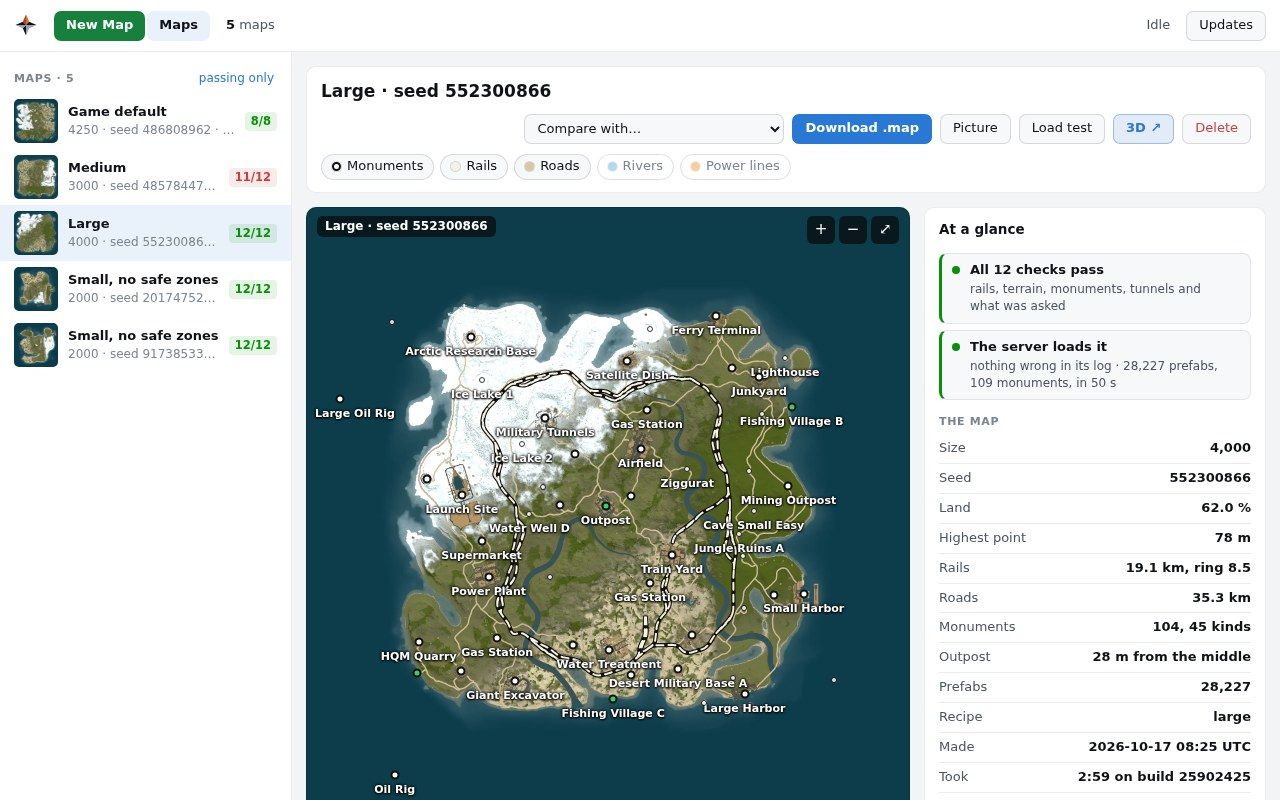
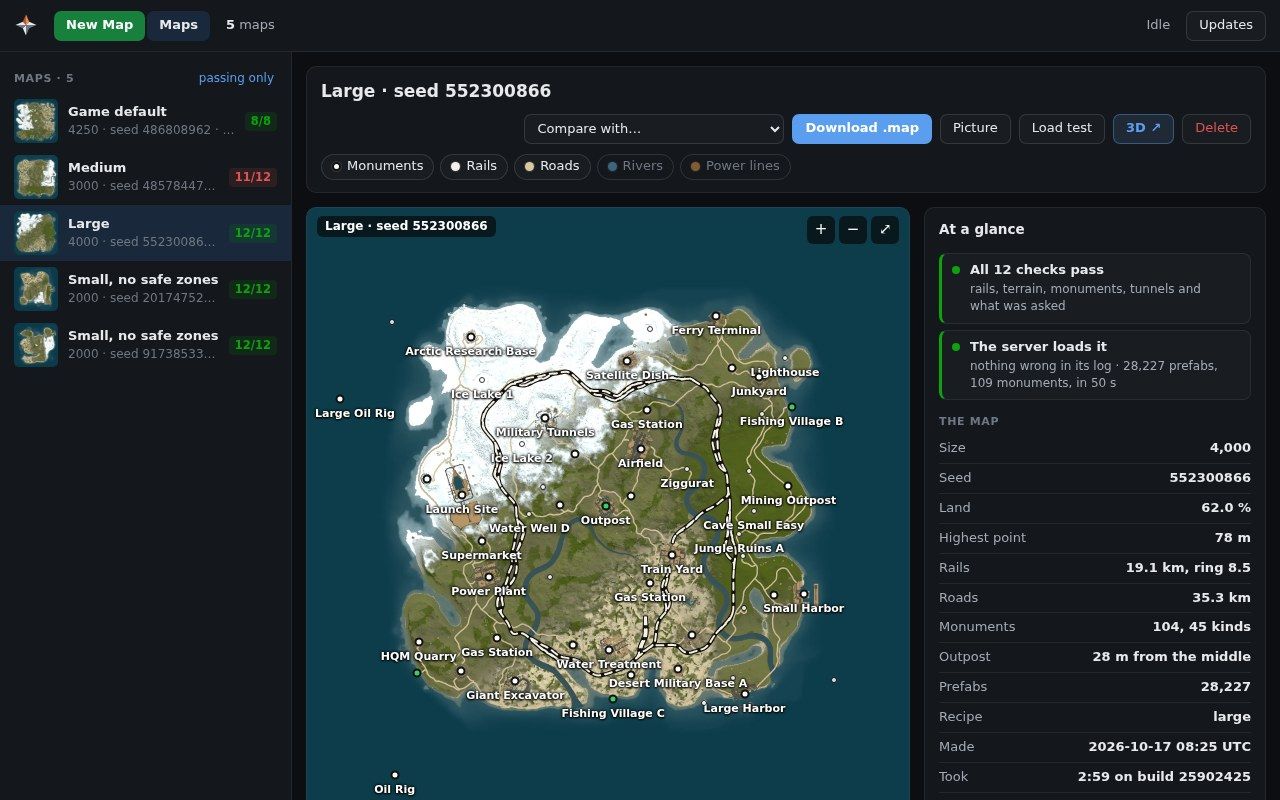
Make your own Rust maps. The installer sets everything up by itself and downloads the free Rust dedicated server from Steam, about 6 GB. On a fast connection it is done in under ten minutes; then you open the panel and make your first custom map.
1
Download RustMapGen
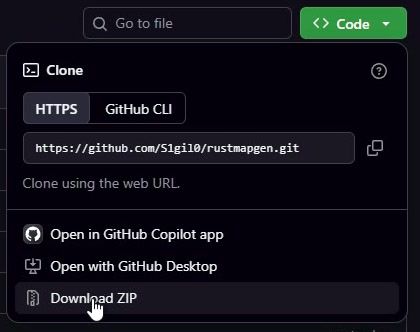
Get the code as a ZIP file. It is small: the game itself comes later, in step 4.
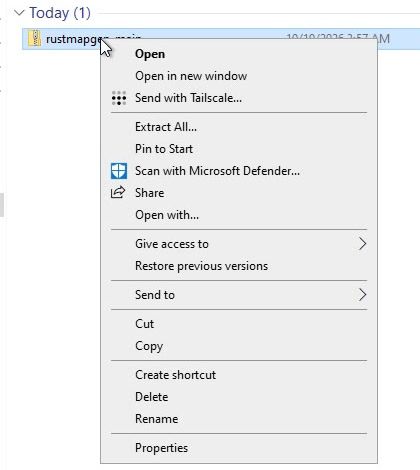
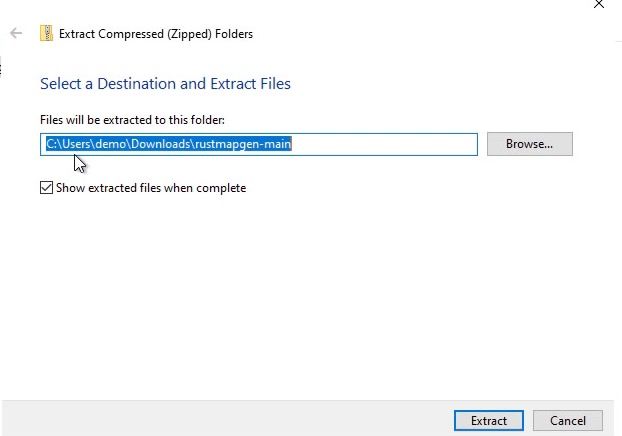
In your Downloads folder, right-click rustmapgen-main.zip, choose Extract All…, then Extract.
1
2
Always extract first. A file opened from inside the ZIP runs from a temporary folder, and the game would be downloaded there.
Windows makes a folder inside a folder of the same name, rustmapgen-main\rustmapgen-main: that is fine. The game and your maps are kept inside it, so put it on a drive with about 7 GB free. You can move the extracted folder anywhere before step 3.
3
Double-click install.cmd
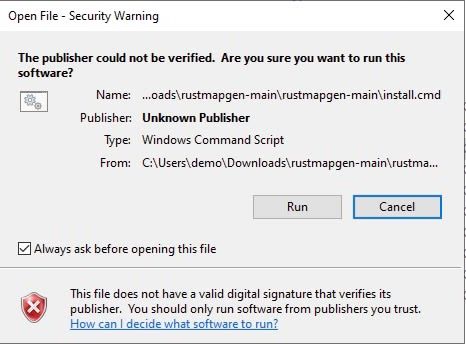
In the extracted folder, double-click install.cmd. Windows asks first, because the file came from the internet and is not signed. Untick Always ask before opening this file so it stops asking for this file, then click Run.
12
install.cmd only starts install.ps1, a short script you can read on GitHub before you run it. The game and your maps are kept in this folder.
4
Let it install
A black window shows each step as it starts. Leave it open until it says Installed.
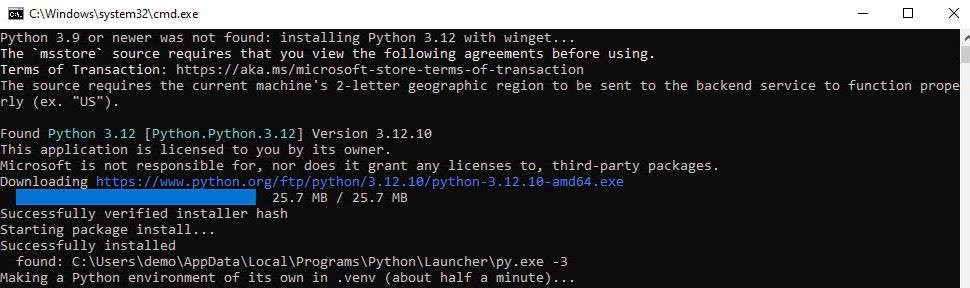
Python. With no Python 3.9 or newer on the computer, it installs Python 3.12 with winget.
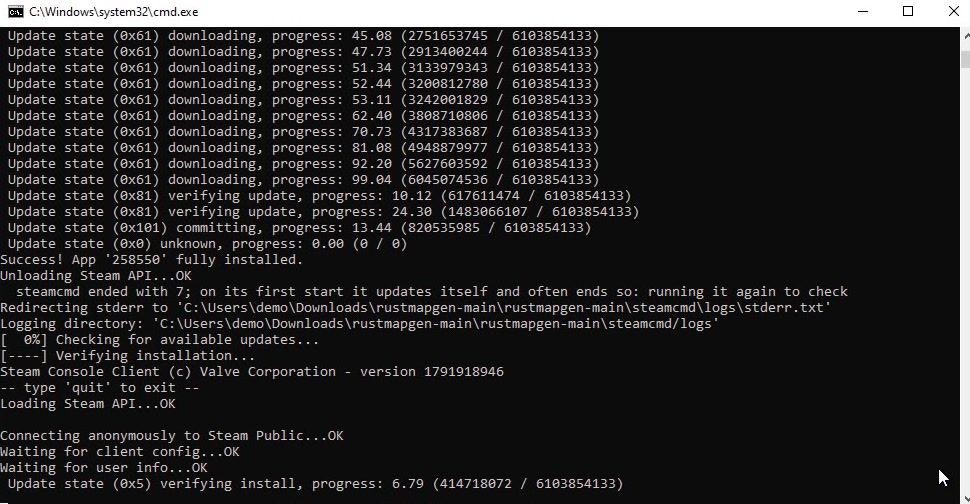
The game. steamcmd downloads the free Rust dedicated server, about 6 GB, in its own lines.
The 3D models. The monuments and rocks of the 3D view are made from the game's files: a few minutes.
No Python yet: winget installs it.
steamcmd downloading the game.
It ends with what it set up (your folder and the game's build will differ):
C:\Windows\system32\cmd.exe
113s 3D models made: 69 monuments, 109 kinds of sceneryIn place: game: build 25902425, public branch, in C:\Users\you\Downloads\rustmapgen-main\rustmapgen-main\game mod: the one that came with the code, for game build 25902425 maps and settings: C:\Users\you\Downloads\rustmapgen-main\rustmapgen-main\dataInstalled. Start the panel with rustmapgen.cmd (double-click it).Press any key to continue . . .
Press a key to close the window. Run install.cmd again at any time to bring the game up to date.
5
Open the panel
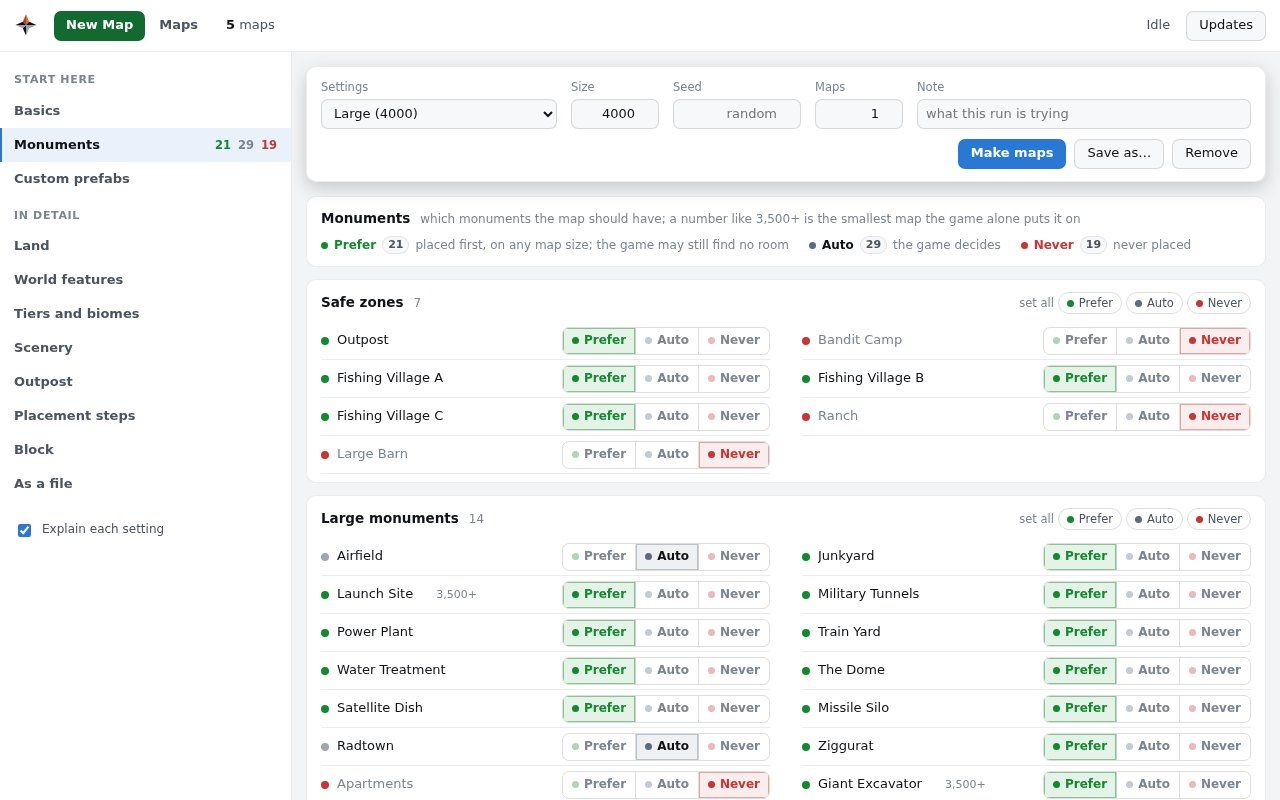
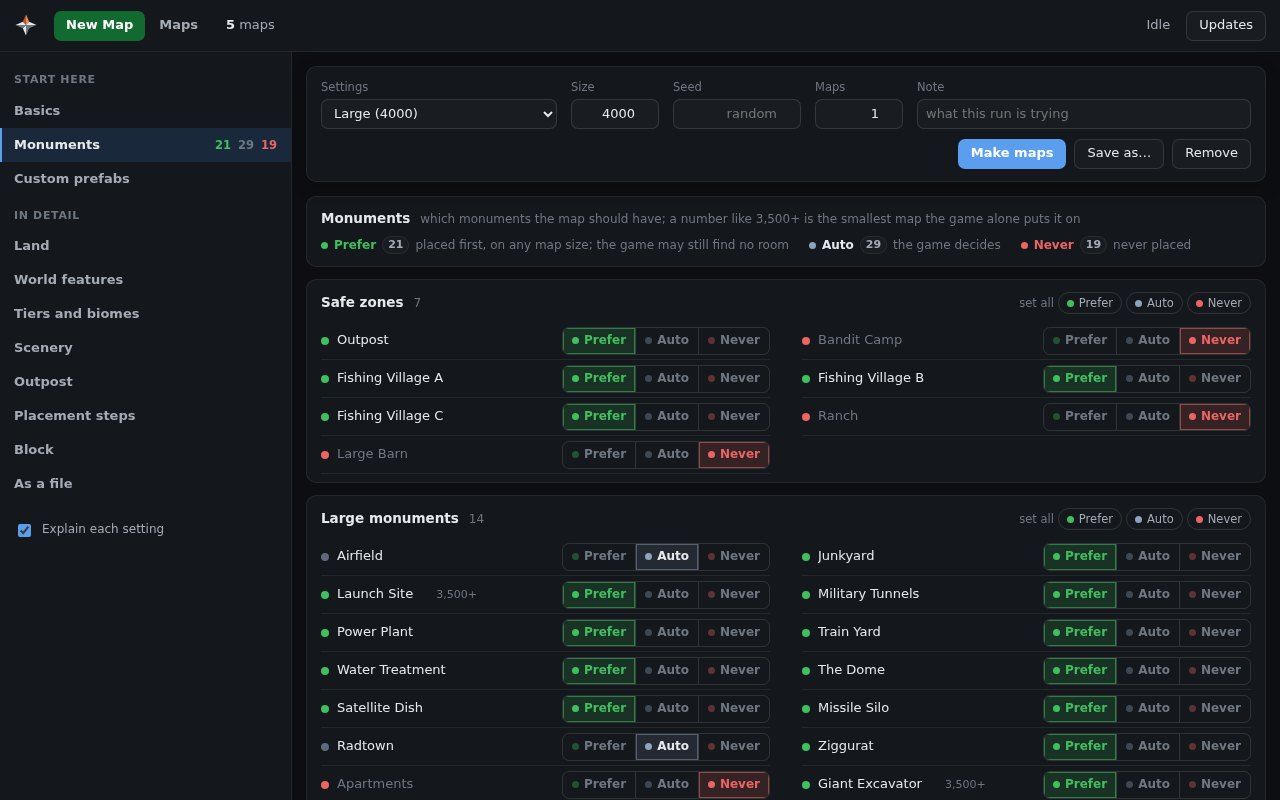
Double-click rustmapgen.cmd in the same folder (Windows asks once more, as in step 3). The panel opens in your browser at http://127.0.0.1:5350.
Keep its black window open while you use the panel: closing it stops the panel. Next time, start here: double-click rustmapgen.cmd.
On another distribution, install the same with its own package manager: Python 3.9 or newer with venv, the 32-bit GCC runtime library, and git.
2
Get the code
Clone it into a folder with about 7 GB free: the game and your maps are kept inside it.
$ git clone https://github.com/S1gil0/rustmapgen.git
$ cd rustmapgen
3
Run the installer
$ ./install.sh
It makes a Python environment of its own, downloads steamcmd and the Rust dedicated server (about 6 GB), and makes the 3D view's models. Each step shows as it starts, the download as it goes. This is a real install of 0.2.0:
~/rustmapgen
$ ./install.shMaking a Python environment of its own in .venv...Installing the Python packages it needs (numpy, Pillow, lz4)...downloading steamcmd into /home/you/rustmapgen/steamcmdsteamcmd: installing the Rust dedicated server in /home/you/rustmapgen/game (about 6 GB on the first install; it can take a while) steamcmd is updating itself [####################] 100 % downloading the game [####################] 100 % 6.1 of 6.1 GB checking what was downloaded [####################] 100 % 6.1 of 6.1 GBgame build 25902425 (public)installing UnityPy to read the game files (once)… 0s reading the game files 12s models 1 of 182 113s models 181 of 182 113s 3D models made: 69 monuments, 109 kinds of sceneryIn place: game: build 25902425, public branch, in /home/you/rustmapgen/game mod: the one that came with the code, for game build 25902425 maps and settings: /home/you/rustmapgen/dataInstalled. Start the panel with: ./rustmapgen.sh
A fresh install of 0.2.0: five and a half minutes on a fast connection. Your folder and the game's build will differ.
Run ./install.sh again at any time to bring the game up to date.
Install Python (on Windows from python.org with Add python.exe to PATH ticked; on Debian or Ubuntu sudo apt install python3 python3-venv), then run the installer again.
“steamcmd needs the 32-bit C library”
sudo apt install lib32gcc-s1, then run the installer again.
On Windows the window stops moving and its title starts with “Select”
A click in it started a text selection, which pauses it: press Esc.
The panel does not open from another computer
Start it with --host 0.0.0.0 and use http://, not https://. See “Open the panel from another computer” above.
“GB of memory free, … needed”
Close other programs: a map needs about 5 GB of memory while it is made.
“the game did not load the mod”
After a Rust update: Updates → Check for updates in the panel brings a RustMapGen whose mod works, when there is one.
“the last update of the game did not finish”
Updates → Update the game again, or run the installer again.